GTA 6 Settings Guide: Best Options to Change for Movement, UI and Aiming
Learn the best settings to change in GTA 6 before you play, including default movement speed options, UI tweaks, and optimized aiming configurations.
GTA 6 Beginner Settings Guide: Best Options to Change First
Video by NorZZa. Watch on YouTube.
How to Change Walk Speed in GTA 6
Did you know you can change your default walk speed in Grand Theft Auto VI? There are a ton of setting options in the game, in the UI, the hard, combat, and ones that can help you actually take a punch, honestly. Here's the best settings to change before you start playing and also some tips along the way. Let's go. [music] We'll start with one of my favorite settings in the game and honestly, I think every game should have this setting, like seriously. That is movement speed. So, your default movement speed actually has four different options.
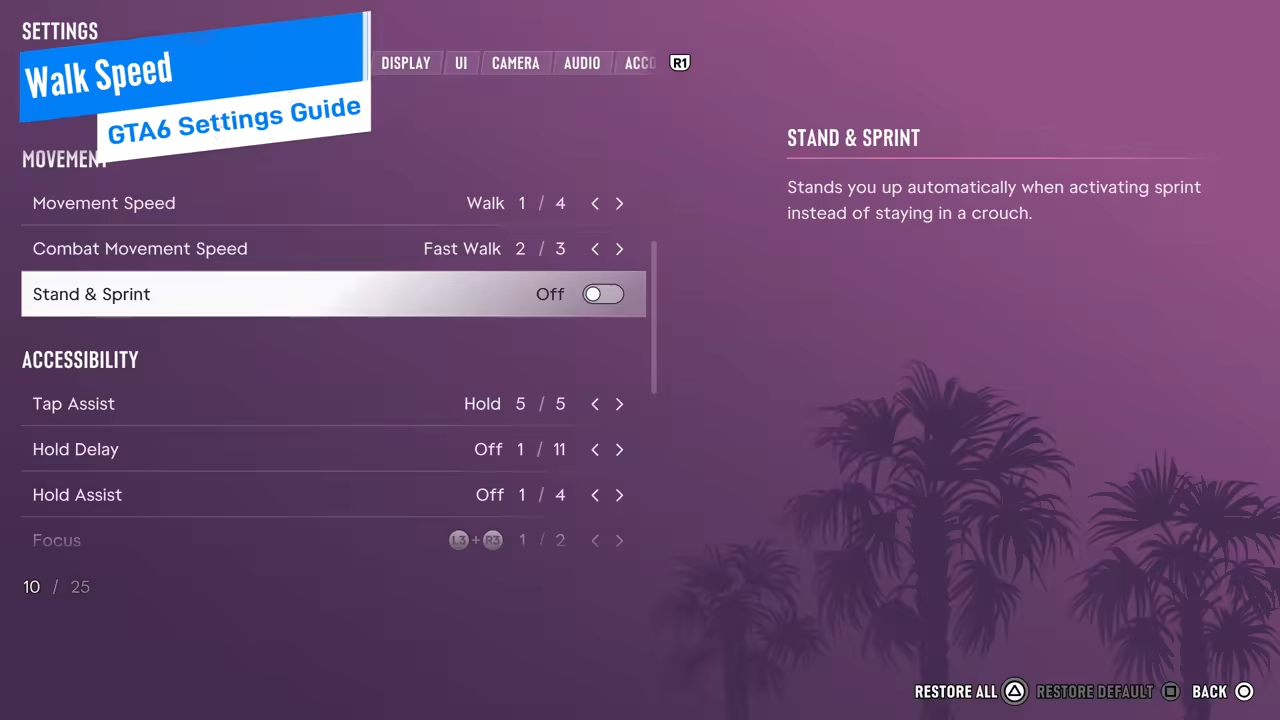
Now, by default, this is set to uh walk. And what this means is that when you push the analog stick all the way forward, Jason or Lucia will simply walk. Now, you may want to move a little bit faster as the default movement speed. You can change this to fast walk, which is a faster version of walk. There's also jog, which is jogging, and then run, which is running. On top of that though, you still have sprint that you can do by pressing in the left analog stick or if you change it to X or whatever button you change it to.
But there is still that extra layer there. So, it's really up to you as to how you prefer to traverse the world, whether you want to walk or run, etc. But on top of that, there is also the combat movement setting. And what you can do with this is actually just change it specifically for combat. I think this one you should probably increase to jog. That way you move a little bit faster in combat, especially say if you're trying to get under cover or like reposition quickly in combat, can just help with the overall movement rather than say fast walking when you're in like a heavy gun fight.
Also, consider turning on the stand and sprint setting. So, what this means is that if you hit sprint while you're crouched, you'll actually stand up and sprint rather than just walk a little bit faster while crouched. There are also a ton of targeting options in the gameplay settings under combat. Here you'll be able to change basically how your aiming reacts. You've got free aim, which has no auto aim or any adjustments. It's just simply your inputs. Partial is what it is by default, which means that if you are aiming close to a target, the reticle will snap to the target, but it won't actually lock on to them.
Best GTA 6 Aiming and Target Lock Settings
Whereas lock on is essentially that in that it will lock onto that target so you can strafe around and the reticle will stay locked onto that target. You change it to this setting so if you do struggle with maintaining combat and especially with controller, right? Like I personally am someone that prefers to play shooters with keyboard and mouse, so look, you know, my controller aim is not always the best. I'll be the first one to admit, so yeah, definitely a setting you could tinker with and even partial I found is probably enough and there's some further tinkering you can do in there as well.
And speaking of difficulty in combat by the way, there is an accessible combat setting further down that list. Even though there isn't technically like a difficulty setting in Grand Theft Auto 6, if you are struggling in combat you can turn on the accessible combat which will make combat a little bit easier for you so you can deal with some of those trickier situations. A setting that I have been testing quite heavily is the auto equipped helmet because I was genuinely curious if having a helmet equipped does actually lower the amount of damage you take when you are in a crash.
Seemingly it does and the hard thing about this is no two crashes are the same, so I can't really make uh Jason or Lucia, you know, just like charge off the bike at the same rate and hit their head every single time. Just, you know, depends on velocity and like physics and stuff, which is kind of cool, but it does seem like it does have an impact to making you take less damage. But I think the most interesting thing actually is that when you are wearing a helmet had this situation when I was testing this where I yeeted my bike into a car and the NPC got out and tried to fight Jason and because he punched Jason in the head he sort of like staggered and like grabbed his hand like he hurt himself and didn't actually do that much damage to Jason.
GTA 6 Motorcycle Helmet Benefits and Settings
So wearing a helmet definitely does have its benefits outside of taking less damage when you're riding a motorbike or a bike. >> You want to go or not? What the [ __ ] you want to do? >> Don't [ __ ] push me. [ __ ] >> Well, this is a setting that you can also turn on in the gameplay settings by the way, so every time you get on a bike it just automatically put a helmet on and if you get off it'll take it off or you could just do this manually as well in the radial wheel anyway.
You don't have to individually do this every time, but it's just a setting that'll auto do it for you to save you a bit of damage. All right, so this next one I'm actually curious to know what you guys personally think, so do let me know in the comments. That is compass or minimap or >> Or GTA Los Santos. >> or none because you've got those options here between the two of them and the third, I guess, if you want to have none. But also, you can actually change whether or not they are showing permanently or dynamically, like say they disappear off screen, we don't need them, things like that.
There's plenty of options here. One thing that I would recommend initially is to have these always on the dynamic setting so that you've just got this like empty screen when you're out exploring. It's really immersive to not have them up all the time, but obviously if you do want them up, you can. You can just press down on the D-pad and they'll automatically appear so you can help orientate yourself and it'll also show all your other stats and everything as well if you just press down on the D-pad anyway.
Now, this is really a personal preference setting, honestly. Like it really depends on how much you want to take in the world versus say looking at the mini map, right? Because you have the when you have the mini map up, you have the driving assistance as well so you can see where you're turning left and right and like what roads you should go on, sort of you know, like Google Maps, things like that, right? And I think that there is value in having that, but maybe when you're driving, personally I think, you do kind of get a bit stuck just say looking at the mini map the whole time and you're sort of playing the mini map and not the game, if you know what I mean, because you're making sure you're driving the right way.
How to Use the GTA 6 Compass and Minimap Options
So I think that there is definitely value in turning it off and just having the compass because the compass will still point you in the right direction, you won't have that mini map as sort of a crutch that sort of you're looking at maybe a little bit too much, but you know, that does depend on your own personal preference. But yes, do let me know in the comments. Are you running with the mini map or the compass or both? Personally right now, I have both enabled, though I do suspect that a little bit later in my journey, I'm probably going to turn off the mini map and just run with the compass because I do personally prefer exploration games that only have a compass.
I just feel like there's a bit more personal discovery in that process than looking at the mini map and knowing exactly where you need to go for something. By the way, while you are in those UI settings, there are options to turn off those pop-ups that appear for say your criminal profile or your relationship status if you did want if so you didn't want those pop-ups all the time. It'll still track those things, but you just won't see those pop-ups, you know, when you do certain actions.
I would also turn on the progress notifications for weapons, vehicles, and animals. So when you study them or so you find new gear or find new weapons or find new vehicles, you'll see a pop-up to say that you've discovered that. It's a good way to track these in your collectibles if you are choosing to track them, and if say you're going for like the 100% trying to find all the information in the collectibles, definitely worth turning on for that reason. Also, for the non-Americans further down in that list as well, you'll be able to change the unit of measure, so you can change it from miles to kilometers, from Fahrenheit to centimeters.
Well, I guess centimeters as well, but Celsius is what I actually meant. But yes, you get what I mean. To add to the ever-growing list of settings to check, we have camera settings. Now, there is individual camera settings for driving as well as on foot. And what you can do with these settings is change how fast your camera spins around, but you can also change the camera height from low to high. Now, the difference here that you can probably see in this footage isn't actually that great.
GTA 6 D-Pad Controls and UI Settings
Like that's quite a small difference between low to high, but one thing to note as well, by the way, is if you do hold down the down on the D-pad, you'll have different camera options too from one, two, and three. That's actually the zoom on the camera. So even though here you can change the height via these settings, you can actually change the zoom via holding down on the D-pad and going one, two, three, so you can set your own individual heights and zoom effects for your character as well.
So you can really get that immersive look whether you want to be a little bit closer, maybe have that lower camera, or you want to be a bit higher and have that fully zoomed out camera. Totally up to you. But what about some settings inside the game itself? Well, there's actually your phone as well because your phone can have settings too. So in the settings on your phone, you'll actually be able to change the ringtone. And you can even just turn the ringtone off if you don't want the phone to actually ring as well.
And another thing to point out is that your phone's a bit more customizable as well with like a wallpaper and things like that, but even on top of that, I found that you can actually get phone cases as well. Like then there's a fair few options too even at the very first electrical store that you find. This is actually called Zeke's Electronics. You actually find this up in Hamlet, which is to the north of like the key starting area. It's not that far if you want to travel up there.
Also, by the way, when you are up here, worth buying headphones because you can buy headphones from here as well, which will then allow you to listen to music and podcasts. By the way, there are podcasts in the game that will then allow you to just walk around the map, have those on and just listen to the music or podcast while you're just wandering around exploring and doing those sort of things. But let me know any other settings and things you've found in the comments down below.
Thank you guys for watching this video till the end. Thank you to our members for supporting the channel. My name is Nozza and I hope you have a great day.
Best GTA 6 Settings for Movement, UI and Aiming
Video by GhillieMaster. Watch on YouTube.
GTA 6 Launch Day Settings and Configuration Guide
Hey everyone and happy Grand Theft Auto 6 launch day. I hope you guys are enjoying the game as much as I have been so far. It's been just so good. I mean, everything about it is fantastic. Well, there is one small nitpick, but I'm not going to get into that in this video. For my first GTA 6 video here on the channel, though, I want to give you guys what I think are the best settings to make GTA 6 feel more fluid, responsive, and just overall more comfortable to play.
I've spent a lot of time tweaking and testing some of the different settings, mostly the aiming settings. And I think right now I've reached a point where I understand most of them and can give you guys some helpful tips and tricks so that you can improve your aim in this game, too. One thing I will not be covering in this video, though, is aircraft stuff. I'm probably going to make that a whole video because the aircraft controls, let's just say, are not very good. But I also just need more time flying aircraft to really understand how that all works as well.
But starting off, we have our control scheme. By default, this sets your L3 button or clicking the left analog stick to run, X to jump, circle to crouch, and square to melee. Now, if you're a longtime GTA player or even a fan of Rockstar games in general, this control setting just feels wrong. It feels really off. And one of the first things I did was change my control scheme to classic, which restores your old GTA controls of tapping X to sprint, square to jump, circle to melee, and L3 to crouch.
This just feels so much more natural to me. I know some people are not going to like spamming X to run, but there is another setting to mitigate that anyways, which we will get into. And for me personally, I've been playing claw for a lot of years, so it doesn't really affect me. I can still control my camera while I sprint from playing claw. Moving into the controller section, we start out with our aim and look sensitivities. Now, a lot of this is going to be personal preference.
How to Adjust Aim Sensitivity in GTA 6
However, as a longtime GTA V player and as someone who used to do a lot of free aim combat in that game, I think you should try to raise your sensitivity as much as you can. The default one is way too slow. It takes like 4 seconds to turn around completely. It's really slow. And by raising your sensitivity, it gives you more control over your character movement. It increases your awareness and reaction time because you can now turn around much faster. It just makes things a lot easier overall.
Now, it doesn't have to be max sensitivity that you go for here. I started out with everything maxed out, but I've been slowly dialing in my sensitivity to more closely resemble what I had in GTA V with the acceleration tuned down just a little bit, and it's been feeling good for me so far. The aim response curve is a new setting in GTA 6. It wasn't in GTA V. However, I think it was in RDR2. I'm not 100% sure on that, though. But if you don't know what an aim response curve is, it basically changes how fast the game reacts to your input depending on how much of a movement you do with the analog stick.
So, for example, let's just say for the precision setting here, if you partially push your analog stick, it'll be slower sensitivity, but then when you push it all the way, it's going to increase the responsiveness. I could get into a bunch of graphs with aim responsive curves, but I'm not going to do that. I'm just going to recommend that you use linear. I started out on standard, but after switching to linear, it did feel way better because linear, just as the name implies, is raw input all the way through.
No matter how hard or how little you push the analog stick, it's always going to be the same speed that the game responds with. It's not going to change depending on how little or how hard you push it. And that's really what you want for muscle memory when it comes to aiming. Jumping on down to the Dual Sense wireless control features. If you're on Xbox, you probably don't have this section at all. I haven't played the Xbox version, so I really can't help in that aspect, but I'd imagine that it doesn't have this section.
Best Controller Vibration and Haptic Settings for GTA 6
The vibration and haptic strength, I turned that off. I don't like vibration in games. I almost always turn it off, but I know some people do like vibration. So, if you do, you can keep that on. Dead zones are very, very important. This setting will drastically change your accuracy because it changes how much you have to push the analog stick for the game to even register an input. The default is four for this setting. I recommend lowering it to at least two or three depending on what feels better for you.
You don't want to make it too low though because if you put it to zero for instance, then even the smallest amount of stick drift will show up in your game which you don't want. Adaptive triggers is another big one. I get it's cool and all to have the game have like resistance when you pull the trigger on a gun or when you're lifting weights or whatever. But to me, these are all gimmick features that get in the way of your own responsiveness and your ability to react.
So, I would just turn all these off. The touchpad button is another big one. If you're like me and have been playing GTA V for 13 years, you might have been opening up the map non-stop when trying to change your camera mode in gameplay because you're just pressing the touchpad button. By default, this setting is set to map. So, when you press your touchpad button, it opens the map. And to change your camera perspective, you have to hold down on the D-pad and then press square to cycle through the options.
Change this setting to camera. And you can now change camera perspectives like you can in GTA V with the press of the touchpad button without having to go in slow-mo and hold down the D-pad. The only downside of doing this though is that you cannot open the map with one button press anymore. You have to press start and then map. I don't know why they don't have it to where you can hold the start button like an RDR2 to open the map with a single button press.
GTA 6 Menu Shortcuts and Start Button Settings
Rockstar, if you're watching this, please change that. Holding start does not have any other inputs in the game as far as I know at this point. So, I don't see why that wouldn't be an option. The light bar setting you can leave on. I honestly didn't even notice it on my controller because I'm staring at my screen when I'm playing, not my controller. That brings us to gameplay. The most game-changing setting is the targeting mode. There are three options: lock on, partial, and free aim. Lock on will just give you the GTA V level of auto aim where it autolocks and tracks the target for you.
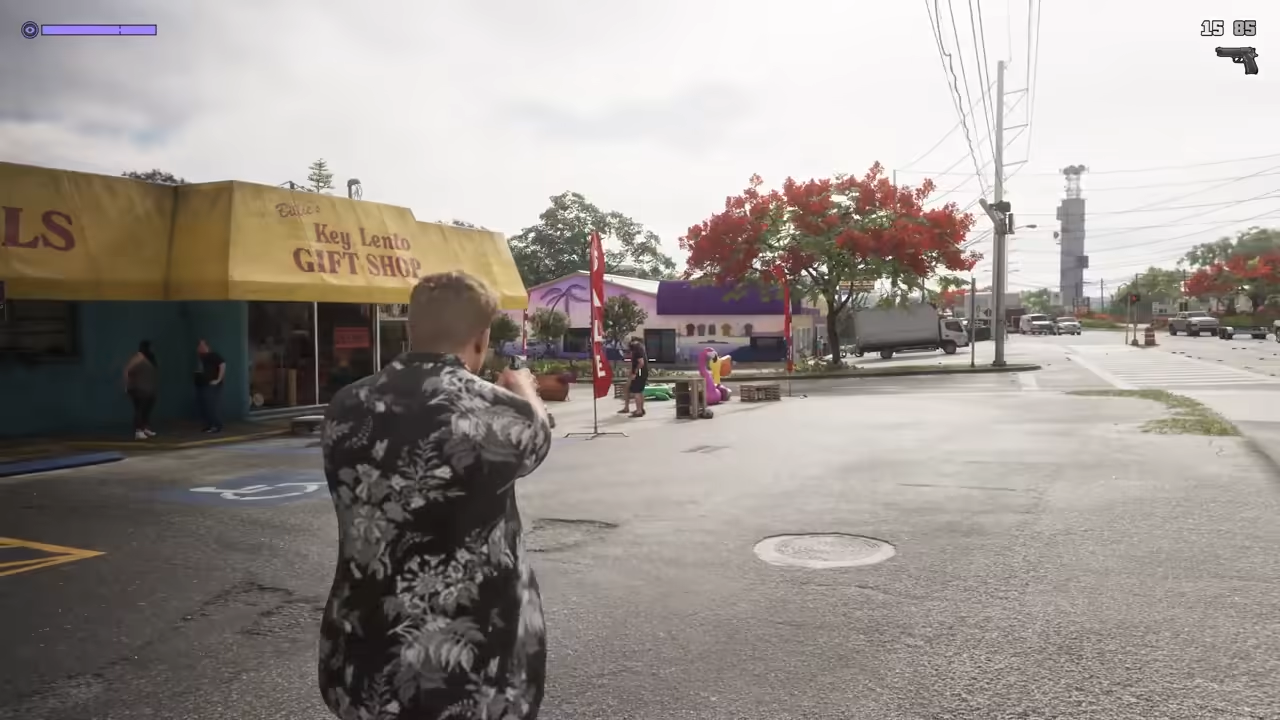
But you are able to change how long you stay locked on to this time instead of GTA V where you couldn't. And instead of having auto aim partial and auto aim full, you can also just turn on target switching, which allows you to cycle through available targets by locking on to one and then flicking the right stick to the left or right. The partial setting is essentially free aim assisted from GTA 5. The setting says it doesn't lock on, but that's not entirely true. It will guide you to a target when you ADS, but it doesn't stay on the target.
And I found this often threw off my aim more than it helped me. And so what I actually recommend here, guys, is the free aim setting. Free aim in GTA 6 is not as difficult as it is in GTA V because in GTA 6 there is now aim assist while you're in free aim that you have. GTA V didn't have any aim assist while you're in free. That's why it felt so awful. And what a assist strength does here is it controls how much slowdown there is on your aim sensitivity when you hover over a target and just the overall strength that the game will try to guide you towards the target when you're over a target in general.
So think of your traditional aim assist in like a first-person shooter game like Call of Duty. Free aim with the aim assist strength tuned into to your liking will make it feel like those other games where the game isn't completely aiming for you, but it also doesn't feel impossible to hit shots either without aim assist. I have my strength set to two right now, and in the gameplay you're watching, that is what I'm using, and it feels pretty decent. I can definitely feel the aim assist helping me, but I still have the satisfaction of gun skill and my aim having to actually matter instead of in GTA V where you don't really feel any satisfaction because all you're doing is letting the bot aim for you.
Best GTA 6 Shooting Assist and Combat Options
So, this is what I recommend if you want a similar vibe to what I like. Shooting assist. To tell you the truth, I couldn't really tell what this did. And for the driveby assist, since it mentions auto aim, I also just turned that off. Heading on down to movement. Remember I mentioned earlier if you aren't a fan of spamming X to run, but you hate the new control scheme, there would be an option for you. Well, here it is. This movement speed option controls what your character does with a full push of the left stick.
By default, this is set to walk. So, if you full press the analog stick forward without any other input, your character will just walk. If you want to make it so you don't have to spam X to run, you can set this to run and your character will auto run when you full press the analog stick. And then what I noticed on top of that is to full sprint with this setting on. All you have to do is hold X instead of spamming it. And if you were curious, you can still walk with the setting on.
You just have to partially push the analog stick forward. For me personally, I don't mind spamming X to run because it's just how I've always played GTA games. So, I like to keep this on a walk. But the option is there for you if you'd like to not have to spam X and you can put it on auto run. One thing I do want to mention, if there are any settings that I skip over and don't mention at all in this video, that means it's best to just leave them at their default setting and to not change it at all.
In the accessibility settings, you can make a lot of the interactions easier if you want to. And two of the more interesting ones are accessible combat and reduced vehicle damage. These both will make the game a lot easier. So if that's something that you're interested in, then the option is there, but I'd probably recommend leaving it default if you don't need those settings. Tabbing over to the display settings. The only important one here is motion blur. Normally, I turn motion blur off in all the games that I play.
GTA 6 Motion Blur and Frame Rate Settings
I turn it off entirely. However, since we are playing at 30 fps and also using high sensitivity, I actually do recommend you keeping this on. I use the default setting and it's been fine so far at three. I tested raising it to the max and it was just way too much blur for me. That was way too much. So, I think three is fine. That's the default setting. With no motion blur and high sensitivity, when you're looking around, it can be kind of jarring. And that's the reason that I recommend just a little bit of blur.
And also in this section, you do have options to turn off gore and dismemberment if you really want to. Under the UI section, I changed subtitle size from small to medium. The small subtitles to me just seemed a bit too small. But this is just 100% personal preference. All the mini map stuff is also entirely up to you and what you like. That's not going to change how the game feels to play. I do want to touch on reticle settings though. There are four settings here.
Complex, which changes the reticle depending on the gun you are using. Simple gives you the RDR2 reticle, where it's a dot with a low opacity circle around it to show bloom. Dot is just the GTA V dot reticle. And then we have none, which disables it completely. Obviously, I recommend either complex or simple because, especially in this game, you want to have your bloom be
Player Reviews of Best GTA 6 Settings
GTA 6 Walk Speed and Camera Follow Settings Feedback
The walk speed and camera follow speed tips are exactly what I needed — Leonida feels so much better once the camera stops fighting you. The RDR2-style settings DNA is a nice touch too 👏
Player, 6 likes
Is there a way to steal gas rather than paying for it? Lol
Player, 6 likes
Only thing I'm struggling with is the framerate....
Player, 6 likes
Is there a way to make Jason's voice sound not so stupid. Seriously, it is hard to here what he is saying cause it is just a low baritone, monotone note with xero registers. I dont know who this new voice actor is but he sucks for Jason's character. I hope the mod community comes up with a way to change his voice after its released on PC. I honestly would have preferred Troy Baker even though it f
Player, 4 likes
I had to switch my controls back to classic, the new controls kept messing me up😭
Player, 2 likes
GTA 6 Vehicle and Plane Controls Feedback
they need to add the bumpers back for plane rudder controls its so awful with the X and B button on xbox circle and square on PS
Player, 110 likes
I haven't enjoyed a game this much in 8 years.
Player, 79 likes
actively autodriving down the keys while watching this ty ghille
Player, 38 likes
I hate having controller vibration in video games, and I tried the PlayStation five vibration and adaptive triggers once, decided I didn’t like it, and have left it off since. With GTA VI, I decided to give it another try, and I am thoroughly impressed. The haptic triggers do not feel overpowered, the vibrations in the controller going over bumps in the road or when you’re near an explosion feel e
Player, 8 likes
I wish there was a way to make your shooting while in a vehicle L1 without making the acceleration L2
Player, 5 likes
How to configure aim response and dead zones in GTA 6
- Aim response curve: Change from standard to linear for raw input matching your thumb movements.
- Dead zones: Lower left and right stick dead zones down to 1 or 2 to improve accuracy, ensuring you increase them slightly if you experience stick drift.
- DualSense features: Turn off vibration, haptic strength, and adaptive triggers to remove artificial resistance that gets in the way of responsiveness.
Best display and visual settings in GTA 6
- Brightness calibration: Adjust based on your screen type, such as setting it to 20 for OLED displays.
- HDR peak nit brightness: Set to match your TV or monitor's specific peak brightness (e.g., 1,000 for certain OLED screens).
- Visual effects intensity: Decrease player status effects, hit effects, and awareness effects from the default of 5 down to 1 so they are not overwhelming.
- Motion blur: Turn completely off to get a much clearer image when turning around, especially at 30 frames per second.